


How to add an attachment or a file link?
- You can add an attachment or a file link to any module of EfficientPIM except Today and Calendar Module.
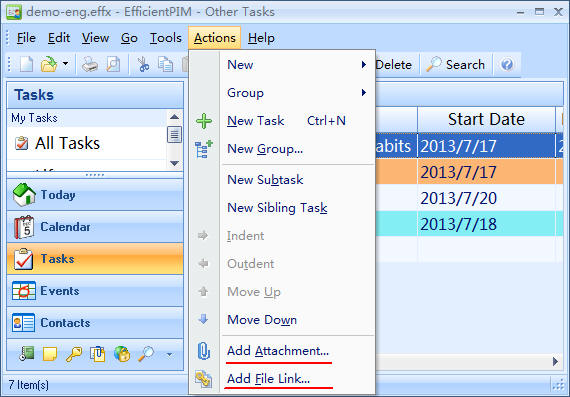
There are four major methods for you to add attachments, and please first select the entry which you want to add to.- Please click Add Attachment on Actions menu, and then you can choose an attachment that you want to add.
- You can click Add Attachment on Edit menu in the edit window. Or click Attachment icon in the toolbar.
- Please right-click the entry to which you want to add an attachment, and then click Add Attachment in the popup menu.
- Please click Add Attachment on Actions menu, and then you can choose an attachment that you want to add.
Tips:
- When you need to add a file link, you can click Add File Link near Add Attachment referring to the above methods of adding attachments.
- An attachment is a copy of the current content of an existing file duplicated into EfficientPIM, while a file link is only the record of the location of a file on the disk.If the source file on the disk is modified, you will see its latest information through the file link; on the contrary, if the type of the attachment is 'Attachment', you will see its information at the very time when it was attached.
This article is suitable for EfficientPIM, Efficient Man's/ Lady's Organizer, Efficient Reminder, Efficient Address Book, Efficient Notes, Efficient Diary, Efficient Password Manager, Efficient Calendar, Efficient To-Do List, and Efficient Sticky Notes.